
Step-by-Step: How to Open Settings in Horizon
-
Go to the bottom left corner of any page in Concord Horizon.
-
Click the gear icon.
This opens a small menu with options such as light mode, dark mode, settings, subscription, and logout.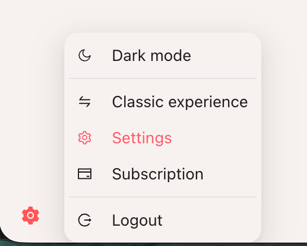
-
Click “Settings” in that menu.
Settings will open in a modal window instead of taking you to a separate page. You can close the modal at any time and you will remain on the page you were working on.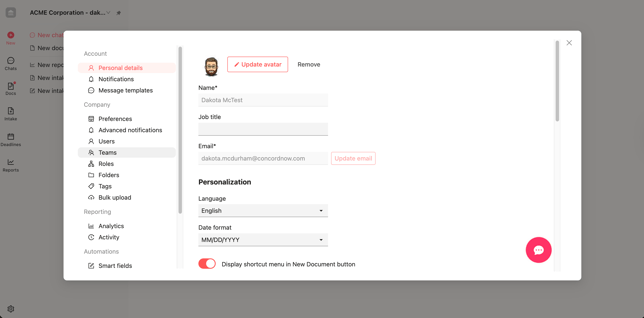
What You Can Access in Horizon Settings
Inside the Settings modal, you have the same settings you are familiar with from Classic, plus access to automations, all in one place.
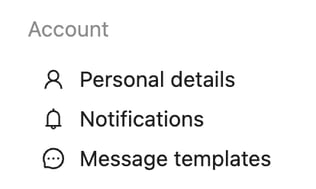
Personal and account settings
You can manage your individual account information under:
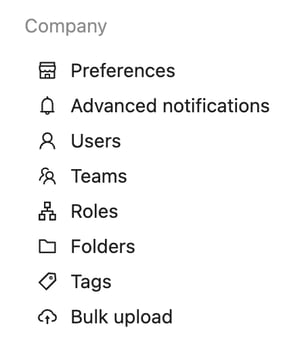
Company and workspace settings
You can manage your organization’s setup and governance under:
Reporting settings
You can access your analytics and activity views from:
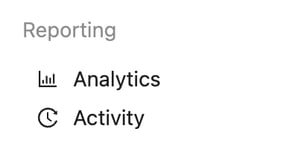
Important: Reports are no longer located next to Reporting in the navigation. Reports now live in their own dedicated section in Horizon. Link to “Concord Horizon Reports tab” Help Doc
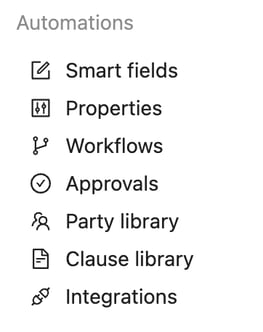
Automations and AI-driven configuration
Within Settings, you also have access to all of your automations and structured configuration tools:
Why This Matters
Having Settings as a modal in Horizon means you can adjust your preferences, manage users, and update automations without losing your place in the app. You can:
-
Open Settings from any page using the bottom-left gear icon.
-
Make quick updates to personal or company settings.
-
Configure automations, workflows, and libraries without navigating away from the inbox or report you are working on.
This keeps you in flow: instead of jumping between settings pages and your workspace, you can quickly adjust what you need and get straight back to your agreements.
FAQs
Q: Can I open Settings from anywhere in Horizon?
A: Yes. As long as you are in Concord Horizon, and not on the document view, you can click the gear icon in the bottom left corner to open the Settings modal on top of your current page.
Q: What changed from Concord Classic?
A: In Classic, settings were full pages you had to navigate to. In Horizon, settings open as a modal that you can access from any page, and you can close it to return instantly to your work.
Q: Where did my reports go?
A: Your reports are no longer located directly next to the reporting options in settings. Reports now live in a dedicated Reports section in the Horizon navigation, which you can access separately. A link to the full “Concord Horizon Reports tab” documentation will be available from this article.
Q: Do I still have access to all of my previous settings and automations?
A: Yes. You still have access to your personal details, notifications, message templates, company preferences, analytics, user and team management, folders and tags, and all automation tools like smart fields, workflows, party and clause libraries, and integrations. They are just organized inside the new Settings modal in Horizon.