---
title: Viewing Agent Execution Logs (Coming Soon)
description: Extraction Agents, extraction, bulk tagging
---
[Skip to content](https://help.concord.app/viewing-agent-execution-logs-coming-soon#main-content)
English
Show submenu for translations

Open main navigation
Close main navigation
- English
Show submenu for translations
- Contact us
Contact us
How can we help you?
- There are no suggestions because the search field is empty.
1. [Concord Support Center](https://help.concord.app/?hsLang=en)
2. [Agents](https://help.concord.app/agents?hsLang=en)
# Viewing Agent Execution Logs (Coming Soon)
## Agent execution logs provide comprehensive visibility into your agent's past runs, including when agents executed, how many documents were processed, and the overall success status. This two-level logging system enables verification, troubleshooting, and audit tracking.
#### Accessing Execution Logs:
**From the Agents Table:**
1. Navigate to the Agents page
2. Locate your agent in the table
3. Click the "Audit trail" button in the Side Panel
4. The Execution Logs page opens
**Page Layout:**
**Header:**
- Agent name displayed as page title
- Breadcrumb navigation: "Agents / {Agent name} / Audit trail"
**Action Buttons:**
- Export: Download logs as Excel or CSV
- Customize columns: Show/hide table columns
- Filter: Narrow displayed runs by criteria
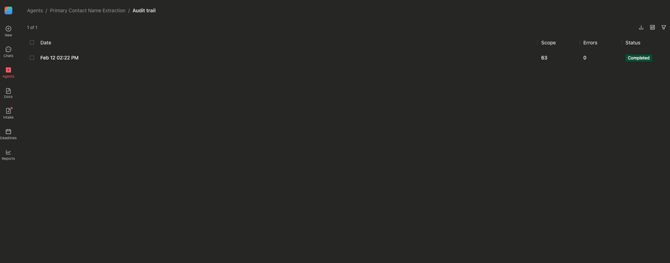
#### Execution Logs Table:
The logs table displays all historical executions with the following columns:
**Run Dates:**
- Format: "Month nth Day, Year HH:MM AM/PM"
- Example: "September 1, 2025 02:00 PM"
- Most recent runs appear first (descending order)
- Clickable to view document-level details
**Status:** Status badges indicate run state:
- "Running" (orange/yellow badge): Execution currently running
- "Completed" (green badge): Execution finished successfully
- "Failed" (red badge): Execution failed
**Scope:**
- Number of document that will be processed
**Errors:**
- Number of errors registered during the run
**Clicking on a Run:**
- Click anywhere on a run row
- Navigate to Run Details page
- View document-by-document extraction results
- See success/failure for each individual contract
#### Important Notes:
- Execution logs retain indefinitely for audit purposes
- Progress numbers update in real-time during active executions
- Only runs for documents you have access to appear in logs
- Deleting an agent removes all associated execution logs
- Failed extractions don't create separate failed document counts (shown in document-level results instead)
- Each manual run creates a separate log entry
- Automated triggers (future) will also create log entries
#### Best Practices:
**Regular Monitoring:**
- Check logs weekly for active agents
- Review progress percentages to spot accuracy issues
- Investigate runs with unusually low success rates
- Compare execution frequency against expectations
**Performance Analysis:**
- Track success rates over time
- Identify when extraction accuracy degrades
- Correlate execution results with agent configuration changes
- Use exported data for trend analysis
**Troubleshooting Agents:**
1. Identify problematic run in logs table
2. Note low progress percentage or failed status
3. Review individual document failures
4. Investigate common failure patterns
5. Adjust agent configuration based on findings
6. Re-run manually to validate improvements
- [FAQs](https://help.concord.app/faqs?hsLang=en)
- [Document View](https://help.concord.app/document-view?hsLang=en)
- [Reports](https://help.concord.app/reports?hsLang=en#main-content)
- [Reports & Analytics](https://help.concord.app/reports?hsLang=en#reports-analytics)
- [Integrations](https://help.concord.app/integrations?hsLang=en)
- [Data & Analytics](https://help.concord.app/data-analytics?hsLang=en#main-content)
- [Reports & Analytics](https://help.concord.app/data-analytics?hsLang=en#reports-analytics)
- [Adding Users & User Roles](https://help.concord.app/adding-users-user-roles?hsLang=en#main-content)
- [Administration](https://help.concord.app/adding-users-user-roles?hsLang=en#administration)
- [Product Updates & Enhancements](https://help.concord.app/product-updates-enhancements?hsLang=en#main-content)
- [New Features](https://help.concord.app/product-updates-enhancements?hsLang=en#new-features)
- [Collaboration](https://help.concord.app/collaboration?hsLang=en#main-content)
- [Working in Concord](https://help.concord.app/collaboration?hsLang=en#working-in-concord)
- [Users and Sharing](https://help.concord.app/users-and-sharing?hsLang=en#main-content)
- [Working in Concord](https://help.concord.app/users-and-sharing?hsLang=en#working-in-concord)
- [Billing and Subscriptions](https://help.concord.app/billing-and-subscriptions?hsLang=en)
- [Managing Your Preferences](https://help.concord.app/managing-your-preferences?hsLang=en#main-content)
- [Setting Up Your Account](https://help.concord.app/managing-your-preferences?hsLang=en#setting-up-your-account)
- [Single Sign-On & Login Integrations](https://help.concord.app/single-sign-on-login-integrations?hsLang=en#main-content)
- [Integrations & API](https://help.concord.app/single-sign-on-login-integrations?hsLang=en#integrations-api)
- [Documents & Contracts](https://help.concord.app/documents-contracts?hsLang=en#main-content)
- [Working in Concord](https://help.concord.app/documents-contracts?hsLang=en#working-in-concord)
- [Templates](https://help.concord.app/templates?hsLang=en#main-content)
- [Working in Concord](https://help.concord.app/templates?hsLang=en#working-in-concord)
- [Approval Workflows](https://help.concord.app/approval-workflows?hsLang=en#main-content)
- [Working in Concord](https://help.concord.app/approval-workflows?hsLang=en#working-in-concord)
- [Account Settings](https://help.concord.app/account-settings?hsLang=en#main-content)
- [Administration](https://help.concord.app/account-settings?hsLang=en#administration)
- [Concord API](https://help.concord.app/concord-api?hsLang=en#main-content)
- [Integrations & API](https://help.concord.app/concord-api?hsLang=en#integrations-api)
- [Salesforce Integration](https://help.concord.app/salesforce-integration?hsLang=en#main-content)
- [Integrations & API](https://help.concord.app/salesforce-integration?hsLang=en#integrations-api)
- [Collaboration Functionality](https://help.concord.app/collaboration-functionality?hsLang=en#main-content)
- [Administration](https://help.concord.app/collaboration-functionality?hsLang=en#administration)
- [Managing Your Documents](https://help.concord.app/managing-your-documents?hsLang=en#main-content)
- [Setting Up Your Account](https://help.concord.app/managing-your-documents?hsLang=en#setting-up-your-account)
- [Automation Workflows](https://help.concord.app/automation-workflows?hsLang=en)
- [Intake Forms](https://help.concord.app/intake-forms?hsLang=en)
- [Deadlines management](https://help.concord.app/deadlines-management?hsLang=en)
- [AI](https://help.concord.app/ai?hsLang=en#main-content)
- [MCP](https://help.concord.app/ai?hsLang=en#mcp)
- [Agents](https://help.concord.app/agents?hsLang=en)
- [E-Signature](https://help.concord.app/e-signature?hsLang=en)
[](http://concordnow.com)
[mailto:email@email.com](mailto:email@email.com)
Copyright © 2026, Concord