
Each separate conversation with Copilot is its own chat. You can start a new chat in two main ways:
-
Go to the New icon in the left-hand menu and choose New chat.
-
Start a fresh conversation from the Copilot panel instead of continuing an existing thread.
Once a chat exists, it is listed in your Chats panel so you can reopen it, rename it, favorite it, or delete it.
Step-by-step instructions
-
Open your chat history
-
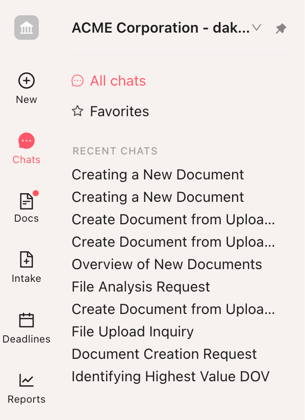
In Concord Horizon, look at the left-hand navigation menu.
-
Click Chats. This opens the Chats submenu.
-
Under Recent chats, you will see a list of your most recent Copilot conversations.
-
If the list is collapsed, click the arrow next to Recent chats to expand it.
-
-
Reopen a previous Copilot chat
-
In the Recent chats list, find the chat you want to return to.
-
Click the chat title.
-
The full conversation opens, and you can scroll through the history or continue the conversation by sending a new message.
-
-
Favorite a chat so you can find it later
-
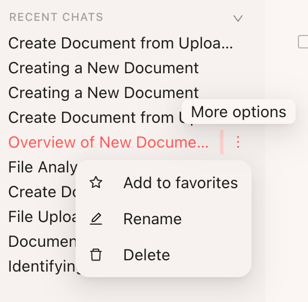
In the Recent chats list, hover over the chat you want to favorite.
-
Click the three-dot More options icon that appears to the right of the chat title.
-
Select Add to favorites.
-
The chat will now appear in the Favorites section above your Recent chats list so you can find it quickly in the future.
-
-
Rename a chat to make it easier to recognize
-
Hover over the chat in the Recent chats list and click the three-dot More options icon.
-
Select Rename.
-
Enter a new, descriptive title.
-
Press Enter to save.
-
-
Delete an old chat you no longer need
-
Hover over the chat and click the three-dot More options icon.
-
Select Delete.
-
Confirm that you want to delete the chat.
-
The chat is removed from your Recent chats list and from Favorites if it was favorited.
-
Why does this matter?
Being able to view and organize your Copilot Chat history helps you:
-
Reuse past work
You can quickly reopen earlier conversations where Copilot summarized contracts, built reports, or drafted language, instead of starting from scratch each time. -
Stay organized across many conversations
If you regularly use Copilot for different projects or teams, renaming and favoriting chats keeps important threads easy to find even weeks later. -
Reduce noise
Deleting outdated or one-off chats keeps your Recent chats list focused on the work that still matters, so you can move faster in day-to-day use.
FAQs
Q: Does deleting a chat delete any contracts or documents?
A: No. Deleting a chat only removes the conversational history with Copilot. All underlying documents, contracts, and reports remain available in your Concord workspace.
Q: Can I have multiple chats about the same contract or topic?
A: Yes. You can start as many separate chats as you like, even if they reference the same documents. Each chat will appear as its own item in your Recent chats list.
Q: Does favoriting a chat change how Copilot responds?
A: No. Favoriting only changes where the chat appears in your list. It makes the conversation easier to find but does not affect the content of the chat or how Copilot behaves.