
Step-by-step instructions
Switch from Concord Classic to Concord Horizon
-
In the Classic Concord interface, go to the bottom-left corner of your screen.
-
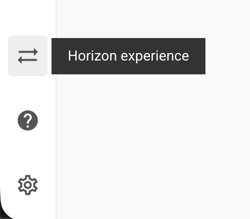
Find the icon with two arrows pointing in different directions (just above the question mark Help icon).
-
Hover over the icon to confirm it says “Horizon experience.”
-
Click the icon. You will be taken directly into the Concord Horizon experience.
Switch from Concord Horizon back to Concord Classic
-
In the Horizon interface, go to the bottom-left corner of your screen.
-
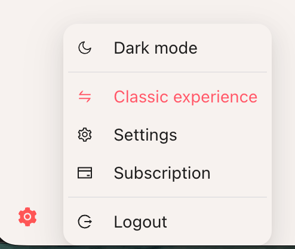
Click the gear icon to open the menu.
-
In the menu, click “Classic experience” to return to the Classic interface.
-
You will be taken back into the Concord Classic experience.
Why does this matter?
Being able to move quickly between Concord Classic and Concord Horizon lets you:
-
Explore the new Horizon experience while still having access to the Classic workflow you already know.
-
Switch back if you need to complete a task that you currently prefer to do in Classic.
-
Transition at your own pace instead of changing your entire workflow all at once.
Plan access and upgrades
Only workspaces on Horizon-enabled plans can switch between Concord Classic and Concord Horizon.
If you are not on a Horizon-enabled plan and would like access to Horizon, please reach out to support@concord.app. A member of our Sales or Customer Success team will help you understand what upgrade would be needed to enable Horizon for your organization.