---
title: Managing your extraction agents (Coming Soon)
description: Extraction Agents, extraction, bulk tagging
---
[Skip to content](https://help.concord.app/managing-your-extraction-agents-coming-soon#main-content)
English
Show submenu for translations

Open main navigation
Close main navigation
- English
Show submenu for translations
- Contact us
Contact us
How can we help you?
- There are no suggestions because the search field is empty.
1. [Concord Support Center](https://help.concord.app/?hsLang=en)
2. [Agents](https://help.concord.app/agents?hsLang=en)
# Managing your extraction agents (Coming Soon)
## The Agents table provides centralized management of all your extraction agents with sorting, filtering, and quick access to configuration and execution history.
#### Accessing the Agents Table:
1. Navigate to "Agents" from the left-hand menu in Concord
2. The table displays all agents you have access to
#### Table Columns:
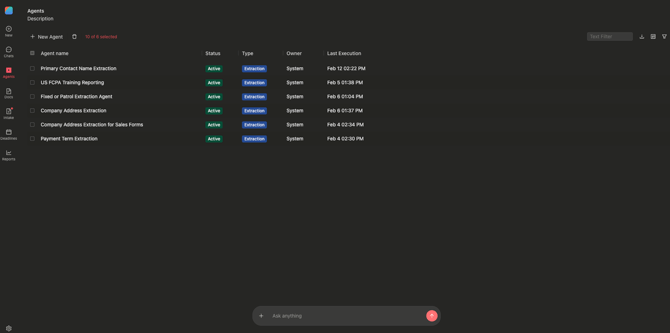
The Agents table displays the following information:
**Agent Name**: The descriptive name of your extraction agent
**Status**: Current agent state displayed with status badges:
- Active (green): Agent is running on matching documents
- Inactive (gray): Agent is configured but not deployed
- Draft (orange): Agent needs scope and trigger configuration
**Agent Type**: Extraction exclusively
**Owner**: Agents owner
**Last** **Execution Date**: Last time the agent ran (for active agents)
#### Agent Side Panel:
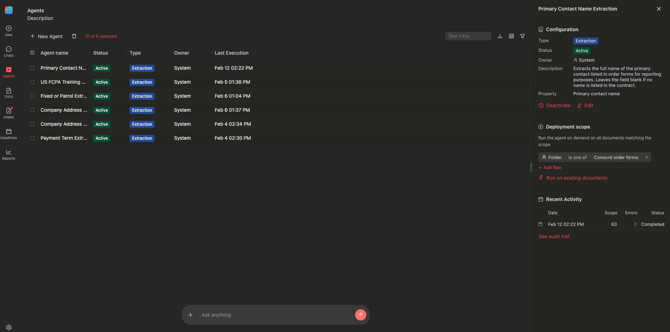
Click on an Agent and Open agent configuration side panel
- View Logs: Navigate to execution history
- Edit Agent: Modify agent settings
- Run on existing documents: Execute on-demand on existing document
#### Managing Agent Status:
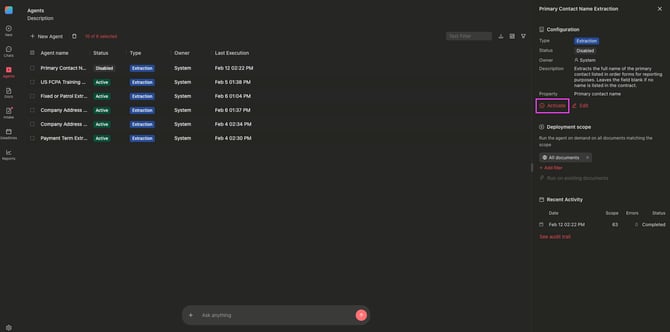
**Activating an Agent:**
1. Open the agent in the Agents table
2. Configure Deployment Scope in the side panel
3. Set document filters (Document Type, Agreement Category, Tags, Folders, Custom Properties)
4. Toggle Status to "Active" by clicking on "Activate"
5. The agent begins processing new matching documents
**Deactivating an Agent:**
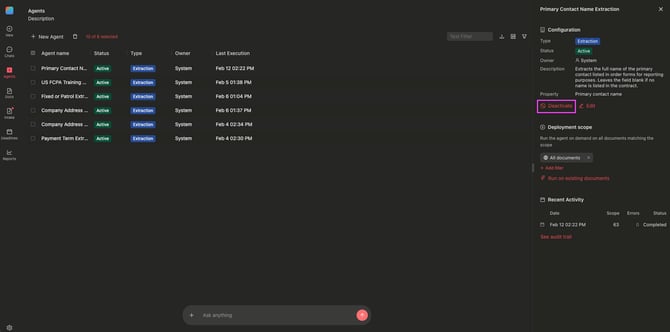
1. Open the active agent
2. Toggle Status to "Inactive" by clicking on "Deactivate"
3. The agent stops processing new documents
4. Existing extracted data remains unchanged
**Editing Agent Configuration:**
1. Open the agent from the Agents table
2. Click "Edit" in the side panel
3. Modify any section in the conversation (Objective, Property, Scope)
4. Save changes
5. Agent updates apply immediately for future executions
#### Important Limitations:
- Draft agents cannot be activated until deployment scope is configured
- Deleting an agent does not remove previously extracted property values
- Agent modifications do not retroactively change existing property values
- Only users with agent creation permissions can edit or delete agents
- Inactive agents retain all configuration but do not process documents
#### Best Practices:
**Organization:**
- Use descriptive agent names that indicate purpose (e.g., "Extract Governing Law - MSAs")
- Group related agents by property type for easier management
- Regularly review execution dates to identify unused agents
**Performance:**
- Start with narrow deployment scopes and expand gradually
- Test thoroughly before activating on large document sets
- Monitor execution logs to validate extraction accuracy
- Deactivate agents when extraction needs change
- [FAQs](https://help.concord.app/faqs?hsLang=en)
- [Document View](https://help.concord.app/document-view?hsLang=en)
- [Reports](https://help.concord.app/reports?hsLang=en#main-content)
- [Reports & Analytics](https://help.concord.app/reports?hsLang=en#reports-analytics)
- [Integrations](https://help.concord.app/integrations?hsLang=en)
- [Data & Analytics](https://help.concord.app/data-analytics?hsLang=en#main-content)
- [Reports & Analytics](https://help.concord.app/data-analytics?hsLang=en#reports-analytics)
- [Adding Users & User Roles](https://help.concord.app/adding-users-user-roles?hsLang=en#main-content)
- [Administration](https://help.concord.app/adding-users-user-roles?hsLang=en#administration)
- [Product Updates & Enhancements](https://help.concord.app/product-updates-enhancements?hsLang=en#main-content)
- [New Features](https://help.concord.app/product-updates-enhancements?hsLang=en#new-features)
- [Collaboration](https://help.concord.app/collaboration?hsLang=en#main-content)
- [Working in Concord](https://help.concord.app/collaboration?hsLang=en#working-in-concord)
- [Users and Sharing](https://help.concord.app/users-and-sharing?hsLang=en#main-content)
- [Working in Concord](https://help.concord.app/users-and-sharing?hsLang=en#working-in-concord)
- [Billing and Subscriptions](https://help.concord.app/billing-and-subscriptions?hsLang=en)
- [Managing Your Preferences](https://help.concord.app/managing-your-preferences?hsLang=en#main-content)
- [Setting Up Your Account](https://help.concord.app/managing-your-preferences?hsLang=en#setting-up-your-account)
- [Single Sign-On & Login Integrations](https://help.concord.app/single-sign-on-login-integrations?hsLang=en#main-content)
- [Integrations & API](https://help.concord.app/single-sign-on-login-integrations?hsLang=en#integrations-api)
- [Documents & Contracts](https://help.concord.app/documents-contracts?hsLang=en#main-content)
- [Working in Concord](https://help.concord.app/documents-contracts?hsLang=en#working-in-concord)
- [Templates](https://help.concord.app/templates?hsLang=en#main-content)
- [Working in Concord](https://help.concord.app/templates?hsLang=en#working-in-concord)
- [Approval Workflows](https://help.concord.app/approval-workflows?hsLang=en#main-content)
- [Working in Concord](https://help.concord.app/approval-workflows?hsLang=en#working-in-concord)
- [Account Settings](https://help.concord.app/account-settings?hsLang=en#main-content)
- [Administration](https://help.concord.app/account-settings?hsLang=en#administration)
- [Concord API](https://help.concord.app/concord-api?hsLang=en#main-content)
- [Integrations & API](https://help.concord.app/concord-api?hsLang=en#integrations-api)
- [Salesforce Integration](https://help.concord.app/salesforce-integration?hsLang=en#main-content)
- [Integrations & API](https://help.concord.app/salesforce-integration?hsLang=en#integrations-api)
- [Collaboration Functionality](https://help.concord.app/collaboration-functionality?hsLang=en#main-content)
- [Administration](https://help.concord.app/collaboration-functionality?hsLang=en#administration)
- [Managing Your Documents](https://help.concord.app/managing-your-documents?hsLang=en#main-content)
- [Setting Up Your Account](https://help.concord.app/managing-your-documents?hsLang=en#setting-up-your-account)
- [Automation Workflows](https://help.concord.app/automation-workflows?hsLang=en)
- [Intake Forms](https://help.concord.app/intake-forms?hsLang=en)
- [Deadlines management](https://help.concord.app/deadlines-management?hsLang=en)
- [AI](https://help.concord.app/ai?hsLang=en#main-content)
- [MCP](https://help.concord.app/ai?hsLang=en#mcp)
- [Agents](https://help.concord.app/agents?hsLang=en)
- [E-Signature](https://help.concord.app/e-signature?hsLang=en)
[](http://concordnow.com)
[mailto:email@email.com](mailto:email@email.com)
Copyright © 2026, Concord