
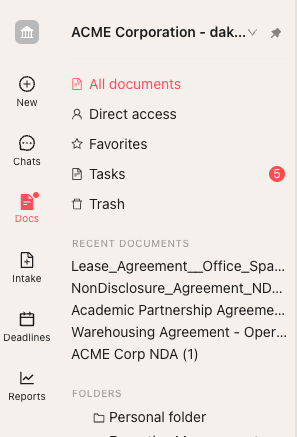
To open your Inbox, go to the left-hand menu and click Docs. This will take you to the redesigned Horizon Inbox, which includes an updated table interface, new filtering options, additional column controls, and integrated Copilot tools to help you search, review, and manage your documents.
Accessing the Horizon Inbox
To navigate to your Inbox:
- Click Docs in the left-hand navigation menu
- The Horizon Inbox will open, displaying your documents in the new table interface
Updated Horizon Table Interface
The Horizon Inbox introduces a modernized, more flexible table layout. Many improvements are designed to make scanning, organizing, and filtering documents easier and faster.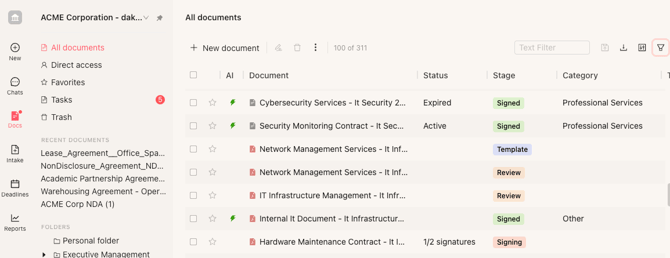
Reordering and resizing Columns
You can now drag and drop columns to reorganize the table in any order you prefer. You can also resize columns. Your column arrangement and sizes will be saved automatically and persist when you return to the Inbox.
Opening Documents
As in the classic Concord experience, you can open any document by clicking on its row in the table.
Row-Level Filtering and Quick Filters
Horizon includes new inline filtering options that make it faster to narrow down your document list:
- Most columns now include a row-level filter icon (additional columns will support this soon)
- Clicking this icon opens a quick filter for that specific field
- You can also use the main Filters panel for more complex filtering
Using the Filters Panel
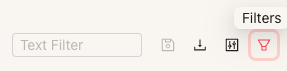
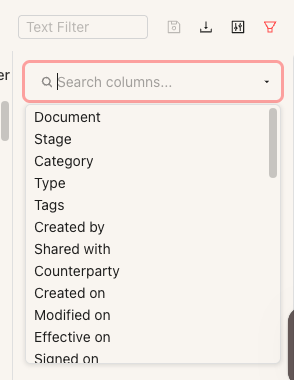
Filters now open on the top right side of the Inbox. You can add multiple filters, combine conditions, and preview the results instantly.
- Click the Filters icon in the toolbar
- The Filters panel will open on the left side
- Select your filter criteria and add additional filters as needed
- Your filtered results will update automatically
New Column Controls
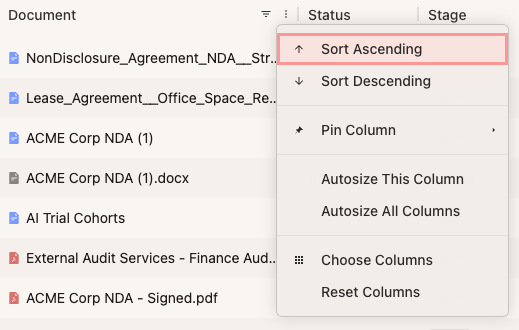
Each column now includes an updated column menu with more customization options. To access the column menu, click the three-dot icon or arrow in any column header.
Available Column Options:
- Sort ascending or descending
- Pin columns to the left or right
- Auto-size column width to fit contents
- Auto-size all columns at once
- Show or hide columns using the column chooser
- Reset columns to default settings
What "Reset Columns" Does
The Reset Columns option returns your table to the default view you saw when you first logged into Horizon. This resets column width, column order, and which columns are displayed. Any customizations you've made since your first login will be cleared.
Exporting Your Inbox
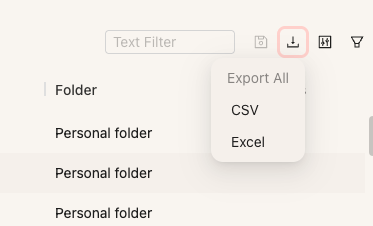
You can export your Inbox data as a CSV file. The export will reflect:
- The entire table, or
- The current filtered view if you have filters applied
Exports include all columns and filters you currently have active.
To export your Inbox:
- Click the Export icon in the toolbar
- Your document list will download as a CSV file
Saving Filters as Reports
When you apply filters in the Horizon Inbox, you can save the resulting view as a report for quick access later.
To save a filtered view as a report:
- Apply your desired filters using the Filters panel
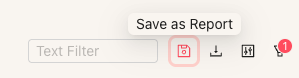
- Click the Save icon in the top toolbar (next to Columns and Filters)
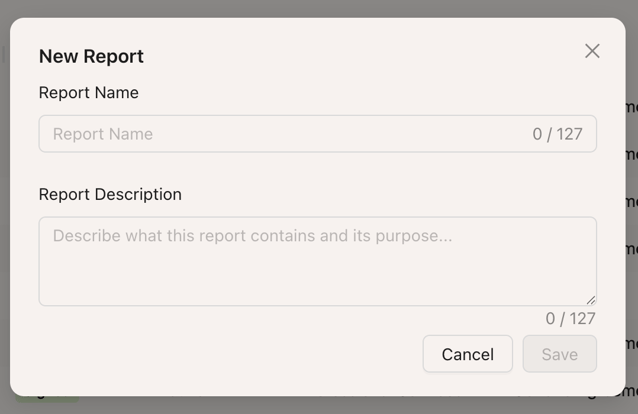
- Name your report and save it
Accessing Saved Reports
Saved reports appear in the Reports tab and can be re-accessed by navigating to your report list.
Using Concord Copilot from the Inbox
The Concord Copilot is now available on every page in Horizon, including the Inbox. Copilot allows you to:
- Ask questions about your documents
- Search for documents
- Create new documents
- Upload files and ask questions about them

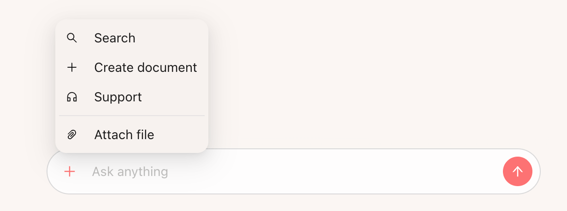
Switching Copilot Into Search Mode
To use Copilot specifically for searching:
- Click the + icon inside Copilot
- Select Search from the dropdown menu
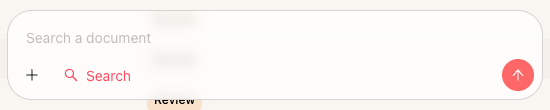
Using Search Mode
From Search mode, you can:
- Search using exact words or phrases (lexical search)
- Ask natural language questions that help you locate the right documents
Exiting Search Mode
To close Search mode and return to the regular Copilot experience, click the X icon next to the Search indicator.
Learn More: Copilot Documentation
Why Does This Matter?
The new Horizon Inbox gives you more control over how you view, filter, and manage your documents. With customizable columns, flexible filtering options, and the ability to save your preferred views as reports, you can create a workspace that matches exactly how your team works. The integrated Copilot brings powerful search and AI capabilities directly into your document management workflow, making it faster to find information and take action on your contracts.
Summary of Key Differences From the Classic Experience
| Feature | Classic Concord Experience | Concord Horizon |
|---|---|---|
| Default landing page | Inbox | Copilot |
| Accessing Inbox | Default page | Click Docs in left menu |
| Table UI | Classic table | New, customizable table with column controls |
| Filters | Top bar | Upper right panel + row-level filters on most columns |
| Saving views | Not available | Save filters as reports |
| Copilot | Not Available on Inbox | Available on all pages |
| Search | Lexical search only | Natural language + lexical search via Copilot |
Note: This article describes features available in Concord Horizon. If you're using the classic Concord experience, your Inbox interface will look different.