
This article shows you how to use AI Search from within Copilot Chat so you can quickly pull up the contracts and clauses you need, then refine or act on them without leaving the conversation.
Step-by-Step Instructions
-
Open Copilot Chat in Horizon
-
In Horizon, open any page where the copilot icon is available (for example, the Inbox or an agreement view).
-
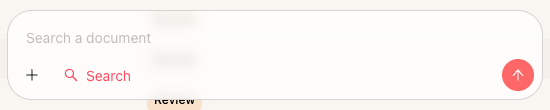
Click the Copilot Chat icon to open the chat panel.
-
-
Start a search-focused conversation
-
In the prompt bar, type a search-style question in your own words, such as:
• “Find all vendor contracts over $250,000 renewing this quarter.”
• “Show NDAs signed this year.”
• “Find contracts with automatic renewal clauses under 60 days’ notice.” -
Press Enter to send your question.
-
Copilot interprets your intent as a retrieval/search request and uses AI Search behind the scenes to find matching agreements and clauses.
-
-
Review AI Search results in the chat
-
Copilot returns a results block in the conversation. Depending on your question, you might see:
• A ranked list of contracts with short snippets.
• A table-style view with columns like contract title, counterparty, value, renewal date, or stage.
• Highlighted clause excerpts showing the exact matching language. -
Scan the list to confirm the results look relevant. AI Search uses semantic understanding, so it can find synonyms and related phrases even when the exact wording is different (for example, “evergreen” vs. “automatic renewal”).
-
-
Open contracts from results
-
Click a contract title in the results to open the full agreement in Horizon.
-
Use the highlighted snippet or clause reference to jump to the relevant section inside the contract.
-
When you close the contract tab, your Copilot Chat thread and search results are still available so you can keep refining your query.
-
-
Refine your search with follow-up questions
-
Without starting a new thread, type a follow-up prompt to narrow the results, for example:
• “Only show contracts renewing next quarter.”
• “Filter to agreements over $500,000.”
• “Show only NDAs with European counterparties.” -
Copilot keeps the existing context, applies your new filters, and returns an updated results set in the same conversation.
-
Repeat refinements until you have a list you’re comfortable reviewing or exporting.
-
-
Move from AI Search to deeper analysis or reporting
-
If you want narrative insight or portfolio-level summaries (for example, “Summarize renewal risks in these contracts”), ask a follow-up question that calls for explanation instead of just retrieval. Copilot routes that question through its analysis engine to return cited, narrative answers.
-
If you need a complete, governed list or metrics (for example, “total vendor spend by department”), use a follow-up like:
• “Create a report of these contracts grouped by department.”
• “Show total contract value by vendor for this list.”
Copilot can then transition into a report-style response powered by AI Reporting. -
Use these pivots when you’ve used AI Search to discover the right set of contracts and now need either qualitative insight (Copilot) or quantitative coverage (Reports).
-
Why does this matter?
Using AI Search inside Copilot Chat means you can go from “I have a question” to “I have the right contracts on screen” in a single, conversational flow. Instead of navigating folders or building advanced filters manually, you simply ask for what you need and let Copilot:
- Interpret your natural-language request.
- Retrieve relevant agreements and clauses with AI Search.
- Keep context as you narrow, pivot to reports, or ask follow-up questions.
The result is faster contract discovery, fewer missed clauses (including in scanned PDFs and older agreements), and smoother handoffs into deeper analysis or formal reporting, all in one governed, auditable interface.
FAQs
Q: How do I know when Copilot is using AI Search versus other engines?
A: When your question is about finding or listing contracts or clauses (for example, “Find all NDAs with Microsoft signed after 2022”), Copilot routes the request through AI Search and returns a ranked list or table of results. When your question calls for explanation, summarization, or metrics (for example, “Summarize risks in these contracts” or “Show total renewal exposure by region”), Copilot switches to analysis or reporting engines but stays in the same chat.
Q: Is AI Search in Copilot Chat guaranteed to find every matching contract?
A: AI Search uses semantic and keyword retrieval and is designed to surface highly relevant results quickly, but it does not guarantee completeness for every possible match. It is ideal for discovery, review, and sampling. When you need a complete, governed list or precise numbers (for example, for audits or compliance reviews), use AI Reporting via a follow-up like “Create a report of all contracts that match these criteria.”
Q: When should I switch from AI Search to a full report?
A: Use AI Search when you’re exploring, looking for a specific document, or investigating and want examples to read closely. Switch to a full report when you need “all of” something (for example, “all NDAs with a specific party”) or when you need metrics and grouped totals you can export. A simple rule of thumb: if you need some examples, stay in AI Search; if you need complete coverage or numbers you can defend, ask Copilot to build a report.
Q: Do I need to configure anything to start using AI Search in Copilot Chat?
A: No additional installation is required. As long as your organization has access to Horizon, then Copilot and AI Search is enabled in your Concord environment. You can start by opening Copilot Chat and typing your first search-style question. Contracts and related documents are indexed automatically, including scanned PDFs via OCR, and results are limited to the agreements you are allowed to see under your existing permissions. If your acountdoes nt have Horison access, please reach out to support@concord.app to be connected with a member of our team to talk about your upgrade options.