
Pinning the left-hand menu works the same for all icons, including New, Chats, Docs, Intake, Deadlines, and Reports.
Pin the left-hand menu
-
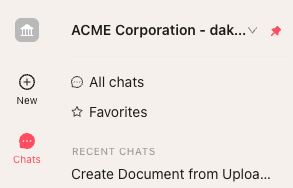
Hover over any icon in the left-hand menu (for example, New, Chats, or Docs). A submenu will slide out to the right of the icon.
-
Look at the top-right corner of the submenu. You will see a thumbtack icon.
-
Click the thumbtack icon to pin the submenu. The submenu will now stay open even when you move your mouse away from the left-hand menu.
-
Navigate to a different section in the left-hand menu, such as Docs or Reports, by clicking its icon. The pinned submenu will stay open, but the content inside it will automatically update to match the section you are on.
-
Continue working as usual. As you move between New, Chats, Docs, Intake, Deadlines, and Reports, the pinned submenu will follow you and always show the options for the page you are currently viewing.
Unpin the left-hand menu
-
Hover over the pinned submenu if it is not already in focus.
-
Click the thumbtack icon again in the top-right corner of the submenu.
-
The submenu will return to its default behavior: it will appear when you hover over an icon in the left-hand menu and disappear when you move your mouse away.
Why this matters
Pinning the left-hand menu helps you:
-
Keep frequently used shortcuts visible while you work, so you can open new chats, documents, reports, or intake items with fewer clicks.
-
See context-specific options (like recent documents and folders in Docs) without hovering repeatedly over the icons.
-
Maintain a consistent layout as you move between sections in Horizon, because the pinned submenu updates automatically to match the page you are on.
- Close menu when needed to have an expanded view of tables in Concord.
FAQs
Q: Does the pinned submenu always show the same section?
A: No. When you pin the submenu for one icon (for example, New) and then click a different icon (like Docs), the submenu stays pinned but updates to show the submenu for the section you just opened.
Q: Can I pin more than one submenu at a time?
A: No. You can pin only one submenu at a time. When you move to another section, the same pinned panel will simply update to show that section’s options.