
This article walks you through each way to create documents from Co-pilot Chat and what happens after you launch the create flow.
Ways to create documents from Co-pilot Chat
Method 1: Enter Create mode from the Co-pilot chat input
-
Open Co-pilot chat in Horizon.
-
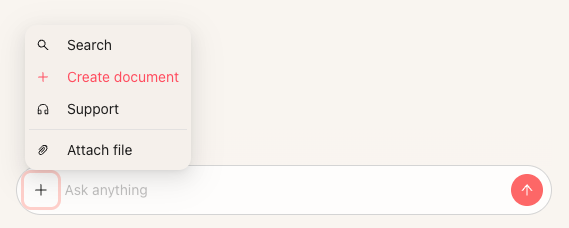
Hover over the plus icon at the left side of the message box.
-
In the menu that appears, select “Create document.”
-
Co-pilot switches the input into create mode. You see a panel that says “Drag and drop or attach a file, then press send,” with a plus icon on the left and a red send button on the right.
-
Choose how you want to add content:
• Drag and drop a file from your computer into the create area, or
• Click to attach a file, or
• Click “Create blank document” to start from an empty Concord document. -
After you attach a file or choose a blank document and press send, the “Add document to Concord” wizard opens so you can finalize the document settings.
Method 2: Drag and drop a document directly into Co-pilot
-
From any Co-pilot chat, drag a file from your computer (for example, a PDF or Word document) into the chat area.
-
Drop the file when you see the upload highlight. The file is attached to the conversation and used as the source for a new Concord document.
-
Co-pilot automatically launches the “Add document to Concord” wizard so you can set the import options, status, and storage location.
Note: When you upload a Word or PDF file, you can choose whether to import it in Live mode or PDF mode as part of the wizard step.
Method 4: Start from the New menu in the Horizon sidebar
You can also launch the same document creation flow from the main New menu in Horizon and still work within Co-pilot.
-
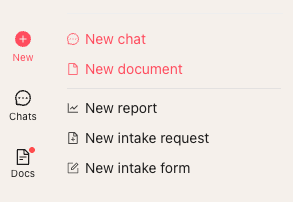
In Horizon, hover over the New icon in the left sidebar.
-
In the menu, click “New document.”
-
Horizon opens the document creation panel. From here you can:
• Drag and drop or attach a file, or
• Choose to create a blank document. -
After you choose your source, the “Add document to Concord” wizard opens to complete the setup.
Complete the “Add document to Concord” wizard
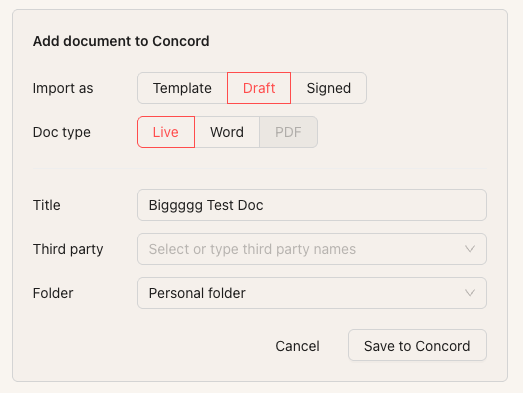
No matter which path you use, you finish by confirming details in the Add document to Concord panel.
-
Review the Import as setting at the top and choose the correct document state:
• Template – for reusable templates you will use again.
• Draft – for in-progress agreements you still need to negotiate or edit.
• Signed – for fully executed agreements you are just recording in Concord. -
Enter a clear Title for the document so you can find it later.
-
(Optional) Add Third party information by selecting or typing the counterparty names.
-
Choose a Folder where the document should be saved, such as a team folder or your personal folder.
-
If you uploaded a Word or PDF file, choose whether to import it in Live mode or PDF mode based on whether you want editable text or a fixed PDF.
-
Click “Save to Concord” to create the document.
Why does this matter?
Creating documents directly from Co-pilot Chat keeps document creation in the same workspace where you ask questions and review your contracts. You can:
• Use natural language to generate new agreements without hunting for templates.
• Convert third-party files into governed Concord documents in just a few clicks.
• Start document creation from wherever you are working in Horizon: Co-pilot chat, the New menu, or drag and drop.
• Standardize how documents enter your repository with a consistent wizard that sets status, parties, folder location, and import mode.
This saves time, reduces manual navigation, and helps you keep your contract workflows organized and auditable.
FAQs
Q: What file types can I drag and drop into Co-pilot to create a document?
A: You can drag and drop common contract file types such as Word documents (DOC, DOCX) and PDFs. When you upload a Word or PDF file, you choose whether to import it as an editable live document or as a static PDF during the Add document to Concord step.
Q: What is the difference between Live mode, Word Mode, and PDF mode when importing a file?
A: Live mode turns your uploaded file into an editable Concord document so you can redline, comment, and collaborate in the browser. PDF and Word mode keeps the original file as a fixed PDF or Word Doc, which is useful for fully executed agreements or documents that need to maintain all formating. You can add fields (like signers or custom fields) to PDF and Word Mode documents, but you can not edit the text.
Q: Where can I learn more about starting chats and working with Co-pilot?
A: See the help article “Get started with Co-pilot Chat in Horizon” for an overview of how to open Co-pilot, start conversations, and use chat threads for different workflows.