
Use this article to learn how to:
- Build a report directly from Copilot chat
- Build a report from the Reports tab
- Save a filtered Inbox view as a report you can reuse and export
Overview of reports in Horizon
Reports in Horizon are:
• Filtered lists of your contracts, based on fields like stage, dates, type, tags, parties, custom properties, and AI-extracted properties.
• Live views of your data. Each time you open a report, it runs on current contract data.
• Reusable. You can come back to the same report whenever you need to re-run it, instead of rebuilding filters from scratch.
• Exportable. You can download report results to Excel or CSV for sharing or further analysis.
Use this flow when you know the question you want to answer and prefer to start from natural language.
-
Open Copilot chat in Horizon.
-
In a new chat, type a clear question such as:
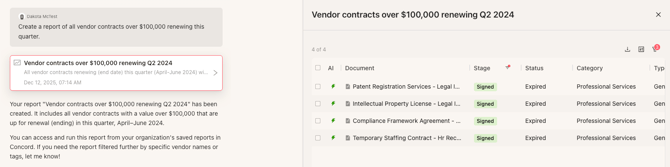
“Create a report of all vendor contracts over $100,000 renewing this quarter.” -
Copilot will interpret your request and open a live, report-style view showing the matching contracts in an Inbox-like table (columns, filters, and export options).
-
Adjust the columns and filters as needed:
• Reorder or show/hide columns the same way you would in the Inbox.
• Use the filter funnel icon at the top-right of the table to refine the results (for example, by stage, effective date, or custom properties). -
When you are happy with the results:
• Export the data if you only need this view once, or
• Save it as a named report so you can re-run it later (see “Save a filtered Inbox view as a report” below). -
Build a report from the Reports tab
Use this flow when you want to manage or create reports outside of a specific Copilot conversation.
A. Open the Reports workspace
-
In Horizon, look at the left sidebar.
-
Click Reports in the navigation.
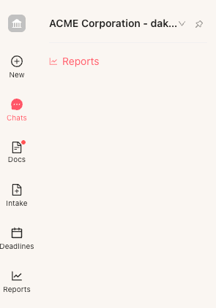
This opens the Reports workspace for the current workspace or organization.
-
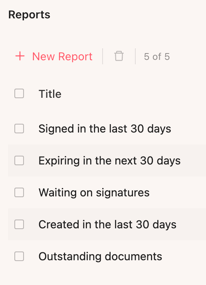
In the Reports panel, you will see any reports that already exist.
B. Create a new report from the Reports tab
-
In the Reports workspace, click New Report.
-
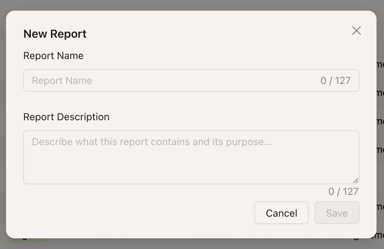
A New Report modal opens. Enter a Report Name and an optional Report Description.
-
Click Save. Horizon opens a new report view that looks like the Inbox, with your report title and description at the top and an empty set of filters.
-
Add filters to define which documents belong in this report:
a. Click the funnel-shaped filter icon in the toolbar above the table.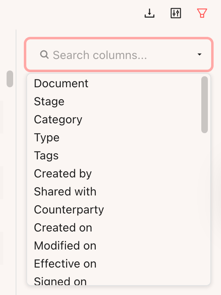
b. In the filter panel, choose the column you want to filter on, such as Stage, Category, Counterparty, or Expiration date.
c. Choose the filter operator and value (for example, “Stage is Signed” or “Effective date is in the next 30 days”).
d. Add more filters as needed to narrow the list. You can combine multiple filters for precise results. -
As you add filters, the table updates to show only documents that match your criteria.
-
When you are finished configuring the report, you can:
• Keep it as a saved report (it is already listed under Reports), and
• Export the results as Excel or CSV whenever you need a snapshot.
Use this flow when you are already working in the Inbox, have added filters, and realize you will want to reuse that same view.
-
Click the Docs Icon to go to the Inbox in Horizon and filter the table as you normally would:
• Apply filters using the funnel icon.
• Select the columns you care about and reorder them to match your workflow. -
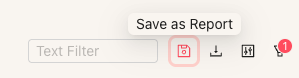
Once the view reflects the contracts you want to monitor or re-run, click the Save as Report icon in the toolbar (disk icon next to the export and filter icons).
-
The New Report modal opens. Enter a clear Report Name (for example, “Expiring in the next 30 days – NDAs”) and a brief Report Description so teammates know what this report does.
-
Click Save.
-
Your new report now appears in the Reports list.
-
In the future, open Reports, select this report, and Concord will run it again against your live contract data. You can still adjust filters, export the data, or update the report definition.
Edit or delete existing reports
-
Open Reports from the left sidebar.
-
Select the report you want to update.
-
In the report view, change filters, columns, or sorting to match your new needs.
-
The Report will save automaticly.
-
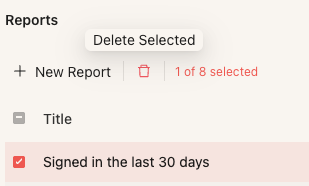
If you need to remove a report that is no longer useful, use the delete option in the Reports panel.
Why does this matter?
Building reports with Copilot in Horizon lets you:
- Turn questions into reports in seconds, without building complex dashboards or SQL queries.
- Reuse the same filters and logic whenever you need a fresh answer, instead of repeating manual work.
- Keep reports always current, since they run on live contract data inside Concord.
- Combine AI-driven discovery with deterministic, field-based reporting: use Copilot to ask the question, and reports to maintain a complete, repeatable view of matching contracts.
FAQs
Q: Do I have to use Copilot to build reports?
A: No. You can start from Copilot chat, from the Reports tab, or from a filtered Inbox view. Copilot is often the fastest way to describe what you need in plain language, but all three paths create the same type of live report.
Q: How are reports different from AI Search results?
A: AI Search is best when you are exploring or looking for a handful of examples and clauses. Reports are best when you need a complete, reliable list of all contracts that match precise criteria, or you need trustworthy numbers for compliance and portfolio reporting.
Q: Will my reports stay up to date automatically?
A: Yes. Reports run directly on your live Concord contract data. Whenever you open a report, it re-runs with the latest documents and metadata that match your filters.
Q: Can I export report results?
A: Yes. From any report view, you can export the current results to Excel or CSV so you can share them with colleagues or import them into BI, ERP, or CRM tools.
Q: Where can I learn more about filters and the Inbox?
A: You can review the Horizon Inbox documentation to learn more about customizing columns and combining filters. These same options are available when you build or edit a report.