---
title: Comparing and Restoring Versions
description: Concord stores a new version of your document after every save, allowing you to view or restore a previous version.
---
[Skip to content](https://help.concord.app/hc/en-us/articles/360020689112-comparing-and-restoring-versions#main-content)
English
Show submenu for translations

Open main navigation
Close main navigation
- English
Show submenu for translations
- Contact us
Contact us
How can we help you?
- There are no suggestions because the search field is empty.
1. [Concord Support Center](https://help.concord.app/?hsLang=en)
2. [Documents & Contracts](https://help.concord.app/documents-contracts?hsLang=en)
3. [Working in Concord](https://help.concord.app/documents-contracts?hsLang=en#working-in-concord)
# Comparing and Restoring Versions
## Concord stores a new version of your document after every save, allowing you to view or restore a previous version.
### Viewing a previous version
- Each time a participant edits the document and clicks **Save**, a new version is created and stored in the document's **Version History**.
- Each time a participant fills fields and saves, a new version is also created and stored.
1. Open the **Revisions** menu in the document header
2. Select **View version history**
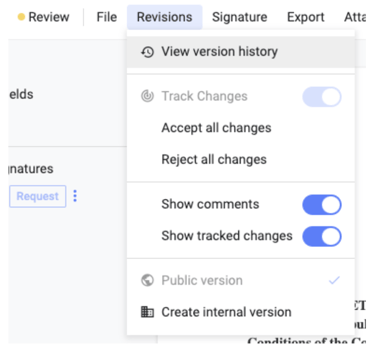
All versions of the document will be listed on the right side of the screen. To preview a version, **click on that version** from the list.
#### **Viewing past internal and public versions**
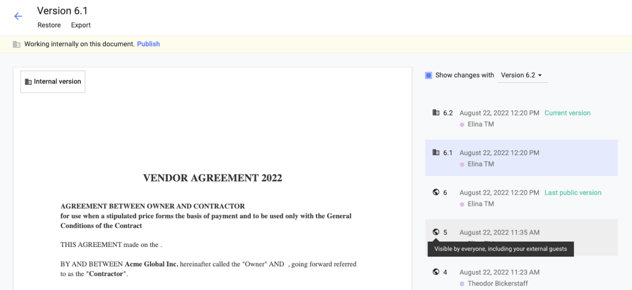
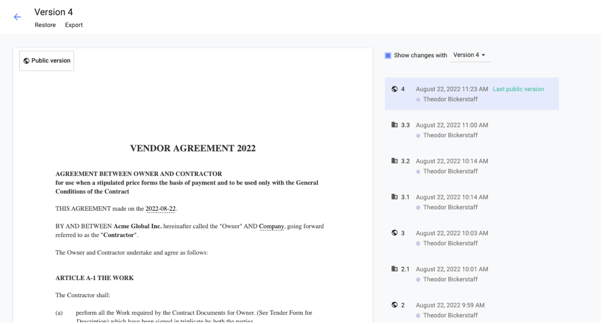
Internal users invited to the document can view both past **public and internal versions** of the document. When the latest version is an internal version, the **last public version** (the version that third parties invited to the document can view) is labeled in the list.
Internal users can tell which versions are internal from the building icon beside the version number and that the version number has a decimal place (public versions are always whole numbers).
**External guests invited to the document can only view public versions of the document.**
### Comparing versions
By default, Concord automatically compares the latest two versions—the version you’re currently working on and the version right before it.
1. Select the **Show changes** checkbox
2. Select a version from the drop-down list
3. Click on a version from the list below that you'd like to compare
- The **highlighted text** in the document preview shows text that has been **changed**.
- Text that is **highlighted** and has a **strikethrough** indicates text that was **removed**.
- The color of the highlighted text indicates who made the edits shown. The participant responsible for each version is shown below the version number and date with a dot beside their name showing their assigned color.
### Restoring a previous version
A document can be restored by any party with full editing rights, including external guests.
1. Open the **Revisions** menu in the document header
2. Select **View version history**
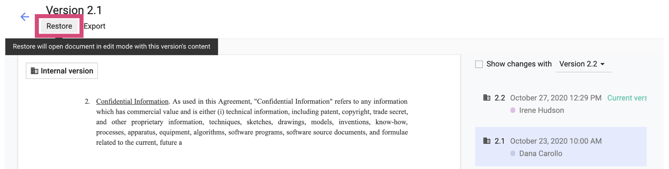
3. **Uncheck** the checkbox beside **Show changes**
4. Select the version you wish to restore from the version list
5. Click the **Restore** button on the top left-hand corner of the page
6. The selected version will appear in the document editor in **Edit** mode. You can make further revisions to the document before saving it as a new version.
7. Click the **Save** button from the document toolbar.
***Note:** Clicking the Cancel button will revert the document back to the last version without restoring any previous versions.*
#### **Restoring internal versions**
Internal users with editing rights can restore past internal versions following the same steps as restoring a previous public version.
***Note:** Regardless if the version being restored is internal or public, the new version that is created when an older version is restored will have the same visibility of the latest version. So, a restored internal version on a document that is publicly visible will be public upon being saved.*
### What is included in a Restore?
- **Comments** **will not be brought forward** with the Restore.
- **Pending tracked changes** on the restored prior version will be brought forward as **approved** changes in the document.
- **Fields will not be brought forward** with the Restore process.
- Placeholder text in the Standard fields (short answer, paragraph, radio, and checkbox fields) will be converted to plain text after the Restore.
- **Signature fields** in the document and the signature block will remain unchanged with the Restore.
### Document types eligible for a Restore
- Documents in the Draft, Review, and Template stages can be restored.
- Documents in the **Signing** stage cannot be restored until they are reverted back to the Review stage and all completed signatures are canceled.
- The contents of Signed documents **cannot** be modified. Therefore, restoring a document will have no impact on the stage/status of the document.
### Restoring a Word mode/PDF document to an earlier version
*The **Restore** button does not work on Word mode/PDF documents, but you can restore to an earlier version of the document by following these steps:*
1. Open the **Revisions** menu in the document header
2. Select **View version history**
3. Select the version you wish to restore from the version list
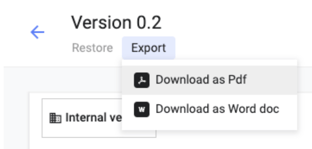
4. Click the **Export** button on the top left-hand corner of the page and select **Download as PDF** or **Download as Word doc** from the menu. The original file for that version will be downloaded to your local computer.
5. Navigate back to the document page by clicking on the blue back arrow in the top-left corner of the page.
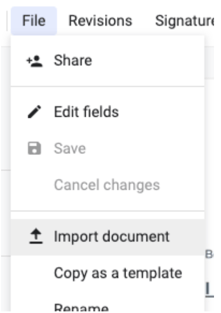
6. Import the file you just downloaded by dragging and dropping the file into your browser window or by selecting **Import document** from the File menu.
7. A new version of the document will be created from the imported file.
***Note:** If the document contained fields, those fields will appear as they did in the previous version in the new version that you just created—not the restored version.*
*If the new version of the document has less pages than the previous version, all fields placed on pages that no longer exist in the document will be automatically removed. **This includes signature fields**. Filled fields located on pages that no longer exist will also be removed.*
- [FAQs](https://help.concord.app/faqs?hsLang=en)
- [Document View](https://help.concord.app/document-view?hsLang=en)
- [Reports](https://help.concord.app/reports?hsLang=en#main-content)
- [Reports & Analytics](https://help.concord.app/reports?hsLang=en#reports-analytics)
- [Integrations](https://help.concord.app/integrations?hsLang=en)
- [Data & Analytics](https://help.concord.app/data-analytics?hsLang=en#main-content)
- [Reports & Analytics](https://help.concord.app/data-analytics?hsLang=en#reports-analytics)
- [Adding Users & User Roles](https://help.concord.app/adding-users-user-roles?hsLang=en#main-content)
- [Administration](https://help.concord.app/adding-users-user-roles?hsLang=en#administration)
- [Product Updates & Enhancements](https://help.concord.app/product-updates-enhancements?hsLang=en#main-content)
- [New Features](https://help.concord.app/product-updates-enhancements?hsLang=en#new-features)
- [Collaboration](https://help.concord.app/collaboration?hsLang=en#main-content)
- [Working in Concord](https://help.concord.app/collaboration?hsLang=en#working-in-concord)
- [Users and Sharing](https://help.concord.app/users-and-sharing?hsLang=en#main-content)
- [Working in Concord](https://help.concord.app/users-and-sharing?hsLang=en#working-in-concord)
- [Billing and Subscriptions](https://help.concord.app/billing-and-subscriptions?hsLang=en)
- [Managing Your Preferences](https://help.concord.app/managing-your-preferences?hsLang=en#main-content)
- [Setting Up Your Account](https://help.concord.app/managing-your-preferences?hsLang=en#setting-up-your-account)
- [Single Sign-On & Login Integrations](https://help.concord.app/single-sign-on-login-integrations?hsLang=en#main-content)
- [Integrations & API](https://help.concord.app/single-sign-on-login-integrations?hsLang=en#integrations-api)
- [Documents & Contracts](https://help.concord.app/documents-contracts?hsLang=en#main-content)
- [Working in Concord](https://help.concord.app/documents-contracts?hsLang=en#working-in-concord)
- [Templates](https://help.concord.app/templates?hsLang=en#main-content)
- [Working in Concord](https://help.concord.app/templates?hsLang=en#working-in-concord)
- [Approval Workflows](https://help.concord.app/approval-workflows?hsLang=en#main-content)
- [Working in Concord](https://help.concord.app/approval-workflows?hsLang=en#working-in-concord)
- [Account Settings](https://help.concord.app/account-settings?hsLang=en#main-content)
- [Administration](https://help.concord.app/account-settings?hsLang=en#administration)
- [Concord API](https://help.concord.app/concord-api?hsLang=en#main-content)
- [Integrations & API](https://help.concord.app/concord-api?hsLang=en#integrations-api)
- [Salesforce Integration](https://help.concord.app/salesforce-integration?hsLang=en#main-content)
- [Integrations & API](https://help.concord.app/salesforce-integration?hsLang=en#integrations-api)
- [Collaboration Functionality](https://help.concord.app/collaboration-functionality?hsLang=en#main-content)
- [Administration](https://help.concord.app/collaboration-functionality?hsLang=en#administration)
- [Managing Your Documents](https://help.concord.app/managing-your-documents?hsLang=en#main-content)
- [Setting Up Your Account](https://help.concord.app/managing-your-documents?hsLang=en#setting-up-your-account)
- [Automation Workflows](https://help.concord.app/automation-workflows?hsLang=en)
- [Intake Forms](https://help.concord.app/intake-forms?hsLang=en)
- [Deadlines management](https://help.concord.app/deadlines-management?hsLang=en)
- [AI](https://help.concord.app/ai?hsLang=en#main-content)
- [MCP](https://help.concord.app/ai?hsLang=en#mcp)
- [Agents](https://help.concord.app/agents?hsLang=en)
- [E-Signature](https://help.concord.app/e-signature?hsLang=en)
[](http://concordnow.com)
[mailto:email@email.com](mailto:email@email.com)
Copyright © 2026, Concord