---
title: Creating Concord documents from Salesforce
description: Concord's Salesforce integration allows users to generate documents from their Salesforce account using an automated template within their Concord account.
---
[Skip to content](https://help.concord.app/hc/en-us/articles/208169196-creating-concord-documents-from-salesforce#main-content)
English
Show submenu for translations

Open main navigation
Close main navigation
- English
Show submenu for translations
- Contact us
Contact us
How can we help you?
- There are no suggestions because the search field is empty.
1. [Concord Support Center](https://help.concord.app/?hsLang=en)
2. [Salesforce Integration](https://help.concord.app/salesforce-integration?hsLang=en)
3. [Integrations & API](https://help.concord.app/salesforce-integration?hsLang=en#integrations-api)
# Creating Concord documents from Salesforce
## Concord's Salesforce integration allows users to generate documents from their Salesforce account using an automated template within their Concord account.
The automated template can contain Salesforce fields that will be automatically populated and synchronized with data from Salesforce. Generated documents can be immediately sent to a third party for signature.
### Sending a Document from Salesforce
1. Log in to your Salesforce account that is integrated with your Concord account.
2. Select the **Opportunity** that you would like to use
3. Click the **New document with Concord** button
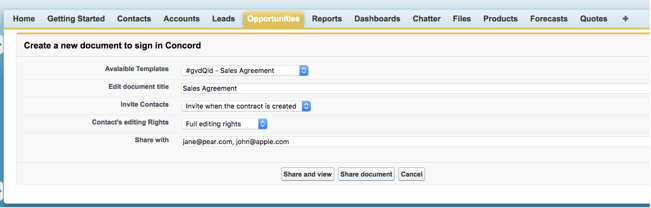
4. From the **Available Templates** menu, select a template
5. Title the document to be generated
6. Choose to invite people when the document is created or choose to invite them later
7. Select the editing rights of all parties that are invited to the document. These editing rights can be assigned individually from within Concord.
- ***Full editing rights** allow all parties to modify the contents of the document.*
- ***Limited editing*** *rights allow all parties to fill in fields assigned to them.*
- ***Viewer rights** allow all parties to only read the document.*
8. Enter the email addresses of the people that you want to invite to the document; each separated by a comma.
9. Either click the **Share document** button or the **Share and view** button.
- Clicking either **Share** button will create the document, automatically populate all the Salesforce fields inserted in the template (if there are available values in Salesforce), and send out invitations (if you have selected '**Invite when the contract is created**').
- Clicking **Share and view** will open the document that was created within Concord in a new tab
- Clicking **Share document** will navigate back to your Opportunity
### Track document statuses from Salesforce
In the Opportunity, the **Concord document-related list** helps track the document status. In particular, it indicates:
- **Date Sent:** Date when the document was shared with a third party
- Date sent will be blank if the document has not yet been shared
- **Date Read**: Date when the first external invitee joins the document
- **Date Executed:** Date when the final singer signs the document
You can view your document at any time by clicking the **View** button.
### View signed documents in Salesforce
Once the document is fully signed on Concord:
- The signed document will be uploaded automatically into the Opportunity as a PDF
- The 'Concord document status' will indicate signed
- [FAQs](https://help.concord.app/faqs?hsLang=en)
- [Document View](https://help.concord.app/document-view?hsLang=en)
- [Reports](https://help.concord.app/reports?hsLang=en#main-content)
- [Reports & Analytics](https://help.concord.app/reports?hsLang=en#reports-analytics)
- [Integrations](https://help.concord.app/integrations?hsLang=en)
- [Data & Analytics](https://help.concord.app/data-analytics?hsLang=en#main-content)
- [Reports & Analytics](https://help.concord.app/data-analytics?hsLang=en#reports-analytics)
- [Adding Users & User Roles](https://help.concord.app/adding-users-user-roles?hsLang=en#main-content)
- [Administration](https://help.concord.app/adding-users-user-roles?hsLang=en#administration)
- [Product Updates & Enhancements](https://help.concord.app/product-updates-enhancements?hsLang=en#main-content)
- [New Features](https://help.concord.app/product-updates-enhancements?hsLang=en#new-features)
- [Collaboration](https://help.concord.app/collaboration?hsLang=en#main-content)
- [Working in Concord](https://help.concord.app/collaboration?hsLang=en#working-in-concord)
- [Users and Sharing](https://help.concord.app/users-and-sharing?hsLang=en#main-content)
- [Working in Concord](https://help.concord.app/users-and-sharing?hsLang=en#working-in-concord)
- [Billing and Subscriptions](https://help.concord.app/billing-and-subscriptions?hsLang=en)
- [Managing Your Preferences](https://help.concord.app/managing-your-preferences?hsLang=en#main-content)
- [Setting Up Your Account](https://help.concord.app/managing-your-preferences?hsLang=en#setting-up-your-account)
- [Single Sign-On & Login Integrations](https://help.concord.app/single-sign-on-login-integrations?hsLang=en#main-content)
- [Integrations & API](https://help.concord.app/single-sign-on-login-integrations?hsLang=en#integrations-api)
- [Documents & Contracts](https://help.concord.app/documents-contracts?hsLang=en#main-content)
- [Working in Concord](https://help.concord.app/documents-contracts?hsLang=en#working-in-concord)
- [Templates](https://help.concord.app/templates?hsLang=en#main-content)
- [Working in Concord](https://help.concord.app/templates?hsLang=en#working-in-concord)
- [Approval Workflows](https://help.concord.app/approval-workflows?hsLang=en#main-content)
- [Working in Concord](https://help.concord.app/approval-workflows?hsLang=en#working-in-concord)
- [Account Settings](https://help.concord.app/account-settings?hsLang=en#main-content)
- [Administration](https://help.concord.app/account-settings?hsLang=en#administration)
- [Concord API](https://help.concord.app/concord-api?hsLang=en#main-content)
- [Integrations & API](https://help.concord.app/concord-api?hsLang=en#integrations-api)
- [Salesforce Integration](https://help.concord.app/salesforce-integration?hsLang=en#main-content)
- [Integrations & API](https://help.concord.app/salesforce-integration?hsLang=en#integrations-api)
- [Collaboration Functionality](https://help.concord.app/collaboration-functionality?hsLang=en#main-content)
- [Administration](https://help.concord.app/collaboration-functionality?hsLang=en#administration)
- [Managing Your Documents](https://help.concord.app/managing-your-documents?hsLang=en#main-content)
- [Setting Up Your Account](https://help.concord.app/managing-your-documents?hsLang=en#setting-up-your-account)
- [Automation Workflows](https://help.concord.app/automation-workflows?hsLang=en)
- [Intake Forms](https://help.concord.app/intake-forms?hsLang=en)
- [Deadlines management](https://help.concord.app/deadlines-management?hsLang=en)
- [AI](https://help.concord.app/ai?hsLang=en#main-content)
- [MCP](https://help.concord.app/ai?hsLang=en#mcp)
- [Agents](https://help.concord.app/agents?hsLang=en)
- [E-Signature](https://help.concord.app/e-signature?hsLang=en)
[](http://concordnow.com)
[mailto:email@email.com](mailto:email@email.com)
Copyright © 2026, Concord