
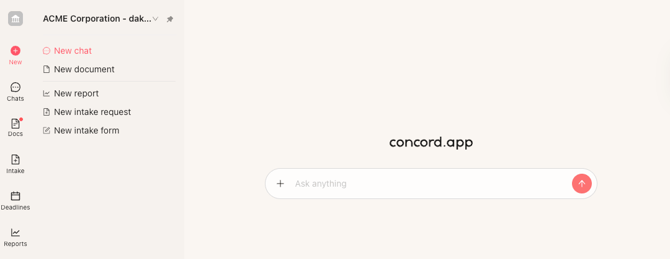
When Horizon is enabled for your account and you open Concord, you will land on the Copilot Chat page by default, unless you open a direct link to a specific document or page.
Open Copilot Chat
Open Copilot Chat from the New page
-
Sign in to Concord Horizon.
-
If Horizon is enabled for your organization, you land on the New page with the Copilot Chat bar in the center that says “Ask anything”.
-
If you navigate away from this page, for example to Inbox or Docs, click New in the left sidebar at any time to return to the full Copilot Chat experience.
Use Copilot Chat from any Horizon page
-
On every Horizon page, you see the Copilot Chat bar so you can start a conversation without leaving your current work.
-
Click inside the bar and start typing your question or request.
-
Press Enter or click the send button to submit your message.
Ask questions about your contracts
-
In the Ask anything field, type a question in natural language about your contract portfolio.
Examples you might use include:
• Which vendor agreements renew next quarter?
• Summarize key risks in our top 10 customer MSAs. -
Copilot reads the relevant contracts you are allowed to access and returns an answer directly in the chat.
If you ask general knowledge questions that are not about Concord or your contracts, Copilot does not answer and guides you back to contract and product-related questions instead.
How to use the plus menu in Copilot Chat
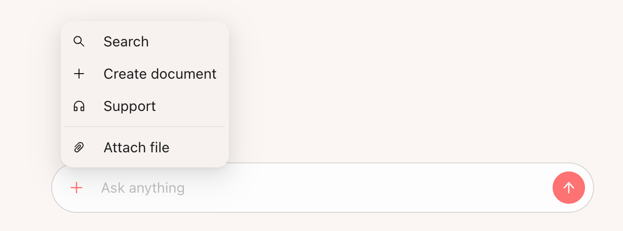
The Copilot Chat bar includes a plus icon that lets you choose specific actions.
-
In the Copilot Chat bar, click the plus icon on the left side to open the menu.
-
Choose one of the options:
• Search
• Create document
• Support
• Attach file
Search your contracts from Copilot Chat
-
Click the plus icon, then select Search.
-
Type what you are looking for, such as “data processing agreements with Acme” or “contracts mentioning auto-renewal”.
-
Copilot uses search mode to return a focused list of contracts that match your query.
-
Click any result to open the contract.
You can link from here to a separate article, such as “Use AI Search in Copilot Chat,” for more details on when to use Search versus reports.
Create documents from Copilot Chat
You can start a new document either with a natural language statement (such as "make a blank document") or by using the Create document option.
Create a document with natural language.
-
In the Ask anything field, type what you want to create, for example:
• Create a new NDA with Acme, governed by California law. -
Copilot launches the new document workflow, where you choose the template if applicable, parties, and any other details.
-
Confirm and create the document.
Create a document using the menu
-
Click the plus icon, then select Create document.
-
Follow the prompts to select the document type, parties, and any additional information.
-
Confirm and create the document.
If you do not choose a specific folder during the document creation flow, the new document is saved to your personal folder by default.
Learn more: Documentation for Creating Documents in Horizon.
Create reports with Copilot Chat
-
In the Ask anything field, describe the report you need in plain language, for example:
• Create a report of all vendor contracts renewing this quarter.
• Show total contract value for X customer this year. -
Copilot interprets your request and opens a structured report based on your contracts and fields.
-
Refine the report by adding or adjusting filters as needed, then save or export the results.
Learn More: Documentation for how to build reports with Copilot in Horizon.
Attach files and ask questions or upload them
-
Click the plus icon, then select Attach file.
-
Choose the file from your computer, such as a PDF, Word document, or scanned agreement.
-
After the file is attached in the chat, you can:
• Ask questions about the file, such as “Summarize this agreement” or “What are the renewal terms in this document?”
• Decide whether to upload the file into your Concord repository.
Important behavior:
• If you upload the file into your Concord repository, it becomes a Concord document that you can reference later from other chats and workflows.
• If you choose not to upload it, the file only exists inside the current Copilot Chat. Other chats and other users cannot reference it.
Use Support mode from Copilot Chat
-
Click the plus icon, then select Support.
-
Copilot opens a dedicated support chat thread focused on how to use Concord.
-
Type a question such as:
• How do I set up approval workflows?
• Where can I change my notification settings? -
Support mode responds with step-by-step guidance based on Concord’s help content.
-
If Support mode cannot fully answer your question, it can help create a ticket and hand off the conversation to Concord Support or your Customer Success team.
Find your recent Copilot conversations
-
In the left sidebar of Horizon, click Chats.
-
You see a list of your recent Copilot conversations.
-
Select a conversation to reopen it and continue asking follow-up questions.
Chats are personal to you and are only visible in your own Horizon session.
Learn more: Documentation on Copilot Chat History.
Pin the Horizon sidebar
-
If you want quick access to New, Chats, Docs, and other sections, you can pin the sidebar so it stays open.
-
When the sidebar is pinned, your access to Copilot Chat, Chats history, Docs, and Reports is always visible.
Learn more: Documentation for pining the Horizon Sidebar.
Why Copilot Chat matters
Copilot Chat is the quickest way to interact with your contracts in Concord Horizon. Instead of clicking through multiple menus, you describe what you need in plain language. Copilot then reads the contracts you are allowed to see, returns cited answers, and helps you act on those answers by opening the right documents, reports, or workflows.
Because Copilot is available on every Horizon page, you can:
• Ask portfolio questions while you are reviewing a specific agreement.
• Create new documents or reports without leaving your current context.
• Attach external files, get instant summaries, and decide whether to save them into your repository.
• Switch into Support mode whenever you need help using Concord, right from where you are working.
Copilot Chat is available only in Concord Horizon. If Horizon is not enabled for your account, or if you do not see Copilot Chat, contact your Concord administrator, your Customer Success Manager, or support@concord.app.
FAQs
Does Copilot Chat give legal advice?
No. Copilot Chat helps you work with your contracts and use Concord more effectively, but it does not provide legal, financial, or other professional advice. You should always review results with your internal legal or compliance teams before making decisions.
What data does Copilot Chat use to answer questions?
Copilot Chat only uses data from your Concord workspace and any files you attach in the current chat. It respects Concord’s existing permissions, so you only see information from contracts and documents you are allowed to access.
Can you use Copilot Chat in the Classic Concord experience?
No. Copilot Chat is part of Concord Horizon. If you are working in the Classic experience, switch to Horizon to use Copilot Chat.
Which languages work best with Copilot Chat today?
Copilot Chat works best with contracts written in English and French. You may still ask about contracts in other languages, but results may be less complete or accurate.
How reliable are search results compared with reports?
Search is excellent for quickly finding relevant contracts and exploring ideas. For complete, audit-ready lists and numbers, use reports created through Copilot, because reports run on structured fields and filters. A separate article such as “Use AI Search in Copilot Chat” can explain the differences in more detail.
What are some things Copilot Chat does not do yet?
Copilot Chat does not send emails or notifications on your behalf and does not directly edit templates or workflows. Use it as a fast way to understand your contracts, generate reports, and open the right pages in Concord, then complete any final changes or communications inside the product or with your team.