---
title: Agent Configuration and Deployment (Coming Soon)
description: Extraction Agents, extraction, bulk tagging
---
[Skip to content](https://help.concord.app/agent-configuration-and-deployment-coming-soon#main-content)
English
Show submenu for translations

Open main navigation
Close main navigation
- English
Show submenu for translations
- Contact us
Contact us
How can we help you?
- There are no suggestions because the search field is empty.
1. [Concord Support Center](https://help.concord.app/?hsLang=en)
2. [Agents](https://help.concord.app/agents?hsLang=en)
# Agent Configuration and Deployment (Coming Soon)
## After creating an agent, configure its deployment scope to control which documents the agent processes. Deployment scope uses flexible filters to target specific contracts, ensuring extraction runs only on relevant documents.
#### Understanding Deployment Scope:
Deployment scope defines the set of documents your agent will process. Without deployment scope, an agent remains in "Draft" status and cannot execute.
**Why Deployment Scope Matters:**
- Ensures agent only processes relevant contracts
- Prevents unnecessary extraction on irrelevant documents
- Improves performance by limiting scope
- Maintains data quality by targeting appropriate document types
- Enables focused testing before broad deployment
#### Accessing Deployment Configuration:
**From Agents Table:**
1. Navigate to Agents page
2. Click on your agent to open the side panel
3. Locate the "Deployment Scope" section
4. Click "Add filter" or edit existing scope
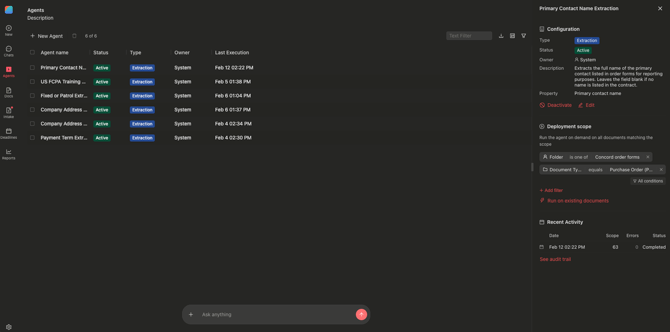
**Deployment Scope Section:** The side panel displays:
- Active filter pills showing current conditions
- "Add filter" button to expand scope
- "Run on existing documents" button (enabled only when scope configured)
#### Available Filter Types:
**Document Type:** Filter by contract template type:
- Examples: MSA, NDA, SOW, Purchase Order, Employment Agreement
- Select one or multiple document types
- Agent processes only documents matching selected types
**Agreement Category:** Filter by business relationship:
- Examples: Customer Agreement, Vendor Contract, Partnership Agreement
- Broader classification than document type
- Useful for department-level filtering
**Tags:** Filter by document tags:
- Examples: High Value, Legal Review Required, Active
- Multiple tag selection available
- Flexible organization beyond formal classifications
**Folders:** Filter by document location:
- Select specific folders in your hierarchy
- Includes all documents within selected folders
- Subfolder inclusion optional
**Custom Properties:** Filter by other property values:
- Use existing property values as filters
- Examples: "Department = Legal", "Contract Value \> $100,000"
- Enables dynamic scoping based on document metadata
- Advanced: Use agent-extracted properties for cascading automation
#### Creating Deployment Scope:
**Step-by-Step Configuration:**
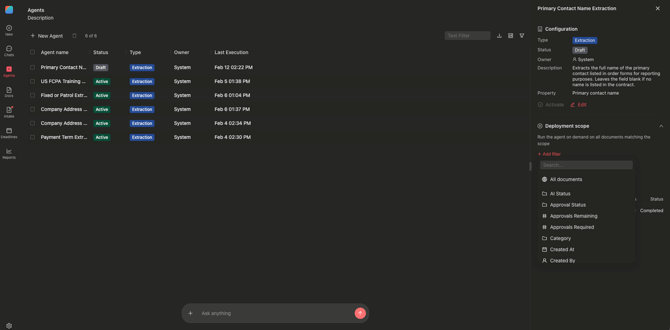
**Step 1: Click "Add filter"**
- Opens filter selection dropdown
- Shows all available filter types
- Select the filter type to add
**Step 2: Choose Filter Type**
- Select from: Document Type, Agreement Category, Tags, Folders, Custom Properties
- Each type opens specific value selection
**Step 3: Select Filter Values**
**For Document Type:**
- Dropdown shows all document types in your account
- Check one or multiple types
- Example: Select "MSA" and "NDA"
**For Agreement Category:**
- Dropdown shows all categories
- Select relevant categories
- Example: "Customer Agreement"
**For Tags:**
- Dropdown shows all tags
- Multi-select available
- Example: "Active" and "High Priority"
**For Folders:**
- Tree view of folder hierarchy
- Click to expand/collapse folders
- Check folders to include
- Option to include subfolders
**For Custom Properties:**
- Select property name
- Choose comparison operator (equals, contains, greater than, etc.)
- Enter or select value
- Example: "Contract Value" "greater than" "100000"
**Step 4: Add Additional Filters (Optional)**
- Click "Add filter" again
- Select another filter type
- Configure values
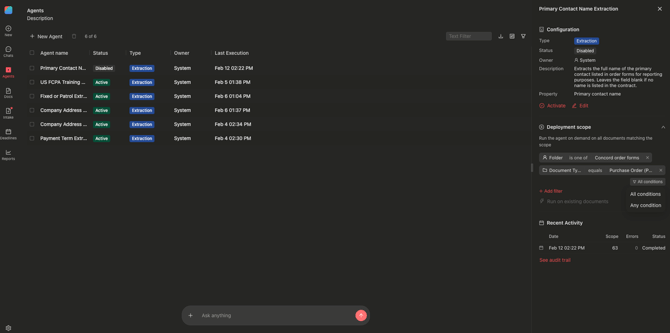
- Filters combine with AND or OR logic (all must match)
#### Understanding Filter Logic:
**AND Logic:** Multiple filters combine with AND:
- Document must match ALL filters to be processed
- Example: "Document Type = MSA" AND "Tag = Active" → Only active MSAs
- More filters = narrower scope
**Multiple Values Within Same Filter:** Behave as OR logic:
- Document matches if ANY value matches
- Example: "Document Type = MSA or NDA" → MSAs or NDAs
- Broadens scope within that filter type
#### Filter Pills Display:
**Visual Representation:** Configured filters appear as pills in the Deployment Scope section:
- Each pill shows: "Filter Type: Value"
- Example: "Document Type: MSA"
- Example: "Folder: Active Contracts"
- Multiple values shown in single pill for same filter type
**Managing Filter Pills:**
- Click "X" on pill to remove filter
- Click pill to edit filter values
- Drag pills to reorder (visual only, doesn't affect logic)
#### Modifying Deployment Scope:
**Editing Existing Scope:**
1. Open agent from Agents table
2. Review current filter pills in Deployment Scope section
3. Remove unwanted filters by clicking "X"
4. Add new filters via "Add filter" button
5. Modify existing filter values by clicking pill
6. Save changes
**Important Notes:**
- Scope changes apply to future executions only
- Previous extraction results remain unchanged
- Re-run manually to apply new scope
- Test scope changes on small sets first
#### Testing Deployment Scope:
**Validate Before Activating:**
**Method 1: Check Document Count**
- Apply scope filters
- System displays: "X documents match this scope"
- Verify count is expected
- Adjust filters if too many/too few
**Method 2: Preview Matching Documents**
- Click "Preview matching documents" (if available)
- Modal shows list of contracts that match scope
- Review document titles to confirm relevance
- Close preview and adjust scope as needed
**Method 3: Run Manual Test**
- Keep agent Inactive
- Click "Run manually" with test scope
- Review execution logs
- Check results on small set
- Activate agent after validation
#### Important Notes:
- Deployment scope required before agent can be activated
- "Run manually" disabled until scope configured
- Scope respects document access permissions (only processes documents you can access)
- Multiple agents can have overlapping scopes
- Scope changes don't affect historical execution results
- Empty scope = agent cannot execute
- V1: On Demand trigger only (manual execution)
- Future: Automatic triggers will use same scope configuration
#### Best Practices:
**Start Narrow:**
- Begin with highly specific scope
- Test on 10-50 documents first
- Validate accuracy before expanding
- Gradually broaden scope after confidence
**Use Meaningful Filters:**
- Choose filters that genuinely narrow to relevant documents
- Avoid redundant filters (Document Type already implies category)
- Leverage tags for flexible, evolving scopes
- Use folders for team-based separation
**Document Your Scope:**
- Add agent description explaining scope rationale
- Name agents to indicate scope (e.g., "Extract Governing Law - Active MSAs")
- Share scope configuration with team
- Document any business rules behind scope choices
**Monitor and Refine:**
- Review execution logs regularly
- Check for unexpected documents in results
- Adjust scope based on new document types
- Update scope when business requirements change
- [FAQs](https://help.concord.app/faqs?hsLang=en)
- [Document View](https://help.concord.app/document-view?hsLang=en)
- [Reports](https://help.concord.app/reports?hsLang=en#main-content)
- [Reports & Analytics](https://help.concord.app/reports?hsLang=en#reports-analytics)
- [Integrations](https://help.concord.app/integrations?hsLang=en)
- [Data & Analytics](https://help.concord.app/data-analytics?hsLang=en#main-content)
- [Reports & Analytics](https://help.concord.app/data-analytics?hsLang=en#reports-analytics)
- [Adding Users & User Roles](https://help.concord.app/adding-users-user-roles?hsLang=en#main-content)
- [Administration](https://help.concord.app/adding-users-user-roles?hsLang=en#administration)
- [Product Updates & Enhancements](https://help.concord.app/product-updates-enhancements?hsLang=en#main-content)
- [New Features](https://help.concord.app/product-updates-enhancements?hsLang=en#new-features)
- [Collaboration](https://help.concord.app/collaboration?hsLang=en#main-content)
- [Working in Concord](https://help.concord.app/collaboration?hsLang=en#working-in-concord)
- [Users and Sharing](https://help.concord.app/users-and-sharing?hsLang=en#main-content)
- [Working in Concord](https://help.concord.app/users-and-sharing?hsLang=en#working-in-concord)
- [Billing and Subscriptions](https://help.concord.app/billing-and-subscriptions?hsLang=en)
- [Managing Your Preferences](https://help.concord.app/managing-your-preferences?hsLang=en#main-content)
- [Setting Up Your Account](https://help.concord.app/managing-your-preferences?hsLang=en#setting-up-your-account)
- [Single Sign-On & Login Integrations](https://help.concord.app/single-sign-on-login-integrations?hsLang=en#main-content)
- [Integrations & API](https://help.concord.app/single-sign-on-login-integrations?hsLang=en#integrations-api)
- [Documents & Contracts](https://help.concord.app/documents-contracts?hsLang=en#main-content)
- [Working in Concord](https://help.concord.app/documents-contracts?hsLang=en#working-in-concord)
- [Templates](https://help.concord.app/templates?hsLang=en#main-content)
- [Working in Concord](https://help.concord.app/templates?hsLang=en#working-in-concord)
- [Approval Workflows](https://help.concord.app/approval-workflows?hsLang=en#main-content)
- [Working in Concord](https://help.concord.app/approval-workflows?hsLang=en#working-in-concord)
- [Account Settings](https://help.concord.app/account-settings?hsLang=en#main-content)
- [Administration](https://help.concord.app/account-settings?hsLang=en#administration)
- [Concord API](https://help.concord.app/concord-api?hsLang=en#main-content)
- [Integrations & API](https://help.concord.app/concord-api?hsLang=en#integrations-api)
- [Salesforce Integration](https://help.concord.app/salesforce-integration?hsLang=en#main-content)
- [Integrations & API](https://help.concord.app/salesforce-integration?hsLang=en#integrations-api)
- [Collaboration Functionality](https://help.concord.app/collaboration-functionality?hsLang=en#main-content)
- [Administration](https://help.concord.app/collaboration-functionality?hsLang=en#administration)
- [Managing Your Documents](https://help.concord.app/managing-your-documents?hsLang=en#main-content)
- [Setting Up Your Account](https://help.concord.app/managing-your-documents?hsLang=en#setting-up-your-account)
- [Automation Workflows](https://help.concord.app/automation-workflows?hsLang=en)
- [Intake Forms](https://help.concord.app/intake-forms?hsLang=en)
- [Deadlines management](https://help.concord.app/deadlines-management?hsLang=en)
- [AI](https://help.concord.app/ai?hsLang=en#main-content)
- [MCP](https://help.concord.app/ai?hsLang=en#mcp)
- [Agents](https://help.concord.app/agents?hsLang=en)
- [E-Signature](https://help.concord.app/e-signature?hsLang=en)
[](http://concordnow.com)
[mailto:email@email.com](mailto:email@email.com)
Copyright © 2026, Concord